
Mudi7 Remote 1.5 is available on the Mac App Store. It is a native Mac companion for your GL.iNet Mudi 7, with Device and OpenClash in a sidebar. One purchase covers iPhone, iPad and Mac when you use the same Apple Account.
Before you connect
You need macOS 14 or later, a compatible GL-E5800-family Mudi 7, its administrator/SSH credentials and Wi-Fi access on the same local IPv4 subnet. Hardware is sold separately. Check the model and firmware requirements. This is local control, not remote access over the internet.
Pair the Mac with your router
- Join your Mudi 7’s Wi-Fi in macOS.
- Open Mudi7 Remote and allow Local Network access if macOS requests it.
- Enter the router administrator password. Your Wi-Fi password may be different.
- Open Advanced only if you need to change the router address, SSH username or port.
- Choose Connect & Remember. After verified SSH authentication, the login and paired host identity are saved in this Mac’s Keychain.
- Check Device for current readings. Open OpenClash for your existing router-side installation.
Pairing is separate on each device. An iPhone login does not transfer to your Mac, and credentials do not sync through iCloud Keychain. A changed router identity requires verification and deliberate re-pairing; it is not silently accepted.
Everyday desktop controls
| Shortcut | Action |
|---|---|
| Command–1 | Open Device. |
| Command–2 | Open OpenClash. |
| Command–R | Refresh the current main status page when connected and eligible. |
| Command–comma | Open Settings. |
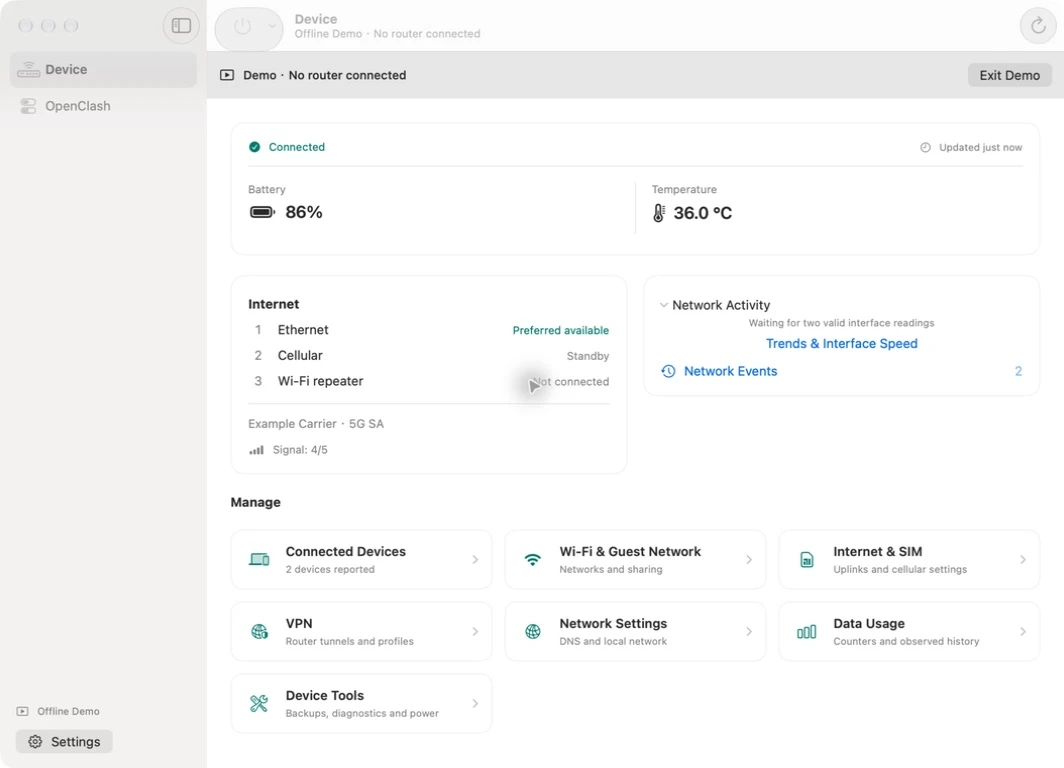
Device opens Wi-Fi, connected devices, Internet/SIM, router VPN, network settings, data usage and device tools. OpenClash includes service and mode controls, expandable Nodes and tools. Reorder changes local display order; it does not reorder router rules.
What differs from iPhone and iPad?
The Mac edition uses native file dialogs for supported VPN configuration imports and exports. It can display supported Wi-Fi or exported configuration QR codes, but does not include a camera scanner. The configurable status widget is available on iPhone and iPad only.
Settings offers Light, Dark or Follow System appearance, and Automatic · While Open or Manual refresh. Automatic reads pause when the app is inactive, hidden or minimized, and when the Mac sleeps. Keeping the Mac connected to Wi-Fi does not make this a continuous background recorder.
If a connection fails
Confirm the Mac is connected to the router’s Wi-Fi and that Advanced contains the correct local IPv4 address and SSH port. If available, check System Settings → Privacy & Security → Local Network. Use administrator/SSH credentials, not just the wireless network password.
An unknown model or missing router component can remain read-only or unavailable even after successful login. After a lost response, reconnect and read the current state before repeating a setting change.
Use Explore Offline Demo to inspect the interface without hardware. It uses fictional data and cannot configure a real router. For help, open Settings → Feedback or visit support. Do not email passwords or unredacted configurations.